
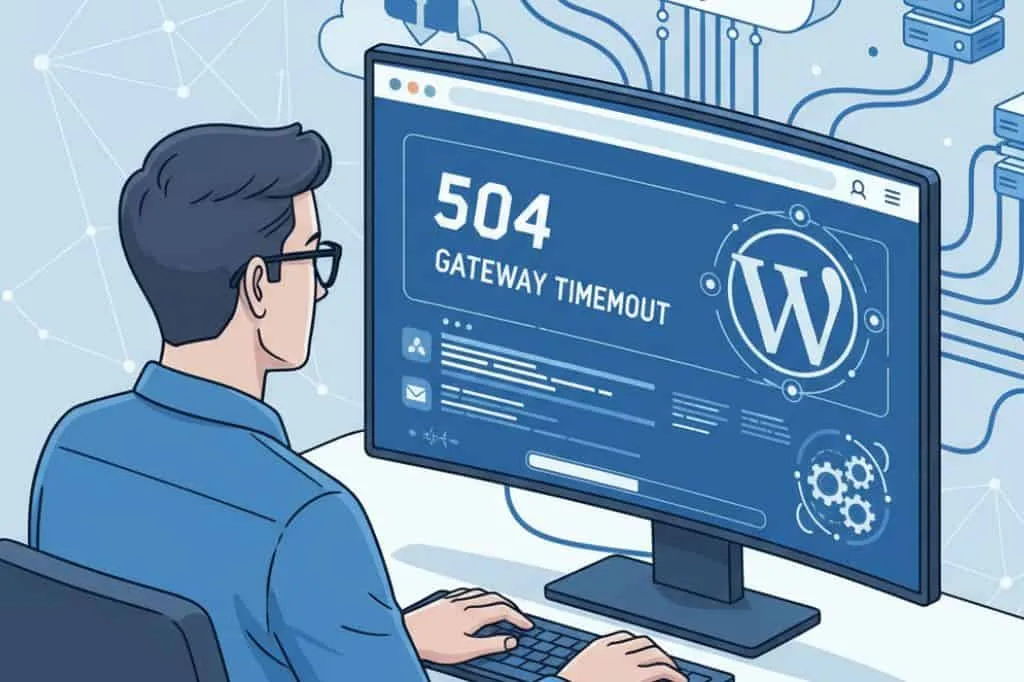
You hit a blank screen, your browser spins, and a 504 Gateway Timeout appears. You are seeing a server-side delay: a gateway or proxy waited too long for an upstream service. You can troubleshoot WordPress with a calm, methodical plan and get back online fast.
This matters because every minute of downtime risks lost sales and trust. Even short delays can cut conversions. In this guide, you will learn causes, quick diagnostics, and proven fixes that protect SEO, user experience, and your brand.
By the end, you will know how to check hosting resources, plugins, themes, the database, PHP limits, cache layers, and logs—even if wp-admin is unavailable.
What You Should Know About a 504 Gateway Timeout in WordPress
You are dealing with HTTP 504, a timeout from an upstream service such as PHP-FPM, your database, or an external API. Many stacks default to ~60-second timeouts, so a slow query or remote call can tip you into failure. Keeping Time To First Byte under ~500 ms reduces cascading delays.
- Tip: You record the exact URL and timestamp of the error to correlate with logs later.
- Data point: A single unresponsive dependency can block all workers, producing global 504s within a minute.
How Do 504 Errors Affect Your Brand Trust and Conversions
You lose credibility when key actions hang or fail. Users abandon slow pages quickly; delays of a few seconds can slash conversions. If your average order is $75 and you handle 40 orders hourly, one hour of downtime can cost $3,000.
- Tip: You post a status banner during incidents; concise updates reduce support volume.
- Data point: Session abandonment rises sharply as wait times exceed ~3 seconds on transactional pages.
Will 504 Errors Hurt Your SEO and Performance
You risk crawl delays when Googlebot meets repeated 5xx responses. Occasional blips are fine, but sustained errors reduce crawl frequency and freshness. You protect visibility by restoring stability and improving Core Web Vitals (target LCP under 2.5 s).
- Tip: You monitor 5xx rates in Search Console and compare with server logs.
- Data point: HTTP 504 specifically signals an upstream timeout, not a client or DNS issue.
How Do You Calculate Business Impact and ROI
You estimate losses by multiplying revenue per minute by outage minutes, then add refunds, support time, and brand impact. Reducing 504s by 50% can yield strong ROI as fewer abandoned carts and tickets offset the cost of proactive work.
- Tip: You track a baseline error rate and compare post-fix metrics to quantify results.
- Example: Cut median server response from 900 ms to 300 ms and you often see a measurable drop in bounce rate.
What Causes a 504 on Your WordPress Site? Common Pitfalls to Avoid
You often find slow plugins, heavy themes, database locks, or upstream network latency. CDN, WAF, or server-cache misconfigurations can also block requests. External APIs (payments, CRM) that exceed timeouts are frequent culprits.
- Pitfalls: Long-running PHP processes, large uploads, cron pileups, and low memory limits.
- Data point: Many hosts cap max_execution_time at 30–120 seconds and limit workers; exceeding caps triggers timeouts.
How You Fix a 504 Gateway Timeout Error: Action Steps
Start with the Basics
You force-refresh, try an incognito browser, and test another network. You review your host's status page and control-panel metrics for CPU, memory, I/O, and bandwidth spikes to quickly troubleshoot WordPress.
- Tip: You capture a HAR file from the browser network panel to spot stalled requests.
- Data point: After DNS changes, propagation can take minutes to hours; temporary misroutes are common.
Replicate the Problem and Eliminate Variables
You define a precise test: page, action, and user role. You test from another device and location, and you use console/network panels to capture errors and timing.
- Tip: You log timestamps so you can match failures to server and CDN logs.
- Example: If only checkout fails while the catalog loads, you investigate payment-gateway latency first.
Plugins: Disable the Problem Plugin Fast
You suspect a plugin conflict or slow external call. You deactivate all plugins, then re-enable one by one until the error returns. If wp-admin is down, you rename the plugins folder via SFTP or the hosting file manager.
- Tip: You review recent changelogs; a fresh update may have introduced the issue.
- Data point: One heavy plugin can add 300–700 ms to TTFB, pushing your stack toward 504s under load.
Themes: Switch to a Default Theme
You switch to Twenty Twenty-Four (or similar) to isolate theme code. Some themes bundle builders and scripts that conflict with caching or increase blocking time.
- Tip: You keep a child theme separate to simplify rollback.
- Data point: Large theme assets can exceed 2–5 MB; optimizing assets improves response time.
Cache: Clear Layers That May Block You
You purge browser cache, plugin cache, CDN cache, and server caches. Extra layers help, but misaligned TTLs or stale keys can create errors and stale content.
- Tip: You purge after disabling a plugin so stale code paths do not persist.
- Data point: Many CDNs default to 120–300 second TTL for HTML; mismatches cause odd behavior.
Local Environment: Rule It Out
You try another device and network. Browser extensions and security tools can block routes, and your site security plugin may block your IP until you whitelist it in the WAF.
- Tip: You test with a clean browser profile to remove local variables.
- Data point: Local hosts-file overrides can silently point you to the wrong server.
Server and Database Checks
You check database locks, slow queries, and worker saturation. You enable WP_DEBUG and WP_DEBUG_LOG to write to /wp-content/debug.log and inspect PHP-FPM, Nginx, or Apache logs. You use Query Monitor to trace slow queries and external HTTP calls.
- Tip: You create a staging site to test fixes safely before production changes.
- Data point: A single uncached query returning 50k rows can freeze workers and trigger timeouts.
PHP and HTTP Timeouts
You raise limits cautiously: max_execution_time (e.g., 120), memory_limit (e.g., 256M), and max_input_vars. In Nginx, you review proxy_read_timeout; in Apache, you check ProxyTimeout. You tune only after fixing root causes.
- Tip: You update to a supported PHP version for speed and security.
- Data point: PHP 8+ often delivers double-digit performance gains versus older versions.
Review Logs and Use Tools
You correlate error and access logs by time, then verify HTTP status codes after every change. You use your hosting metrics, New Relic, or similar tools, and you run WP-CLI to deactivate plugins if wp-admin is down.
- Tip: You keep a recent backup and a rollback plan ready.
- Resources: You consult WordPress debugging and Google's 5xx guidance.
Frequently Asked Questions
How can you tell if the 504 is from your server or an upstream service?
You compare origin and CDN logs; response headers often reveal whether the error came from the gateway or the origin.
What should you do first when a 504 appears?
You check status pages, clear caches, and retry in an incognito window to rule out local issues.
Can a security or firewall plugin cause a 504?
Yes. You temporarily disable WAF rules or whitelist your IP to test access.
Will increasing PHP limits always fix the issue?
No. You fix slow code and queries first, then tune limits so you do not hide the root cause.
Why do you sometimes see partial loads before a 504?
You may receive cached bytes while the upstream stalls; API delays commonly produce half-rendered pages before a timeout.
How do you prevent repeat incidents?
You add monitoring for TTFB, external call latency, and 5xx rates, then set alerts to catch regressions early.
Where You Can Find Help
You review your host's knowledge base, open a support ticket, or ask in the WordPress.org forums. You can also hire a developer to audit code paths and database queries for deeper issues.
Hands-on Walkthrough: A Short Checklist
- You verify uptime, DNS, and SSL configuration.
- You capture a HAR in the network panel; note time and URL.
- You disable plugins, switch the theme, and retest.
- You purge caches and test from another browser and network.
- You review logs, adjust limits carefully, and re-check HTTP status codes.
Related guides
Key Takeaways
- You troubleshoot WordPress by isolating variables: browser, plugins, theme, cache, server, and database.
- You watch timeouts, workers, and external calls; logs and metrics reveal the cause.
- You fix root causes first, then tune PHP and server limits to stabilize performance.
- You document steps so future incidents resolve faster.
- You protect SEO and revenue by restoring consistent, fast responses.
A single 504 error can expose deeper performance risks. Contact Strategic Websites to audit your WordPress hosting, plugins, and code so you prevent future timeouts and keep your site running fast and reliable.